EXPORT TROUBLESHOOTING · Updated October 18, 2026
Garmin Xero 'Send All Sessions' XLS Import: One Session Per Sheet, Without Retyping
Garmin Xero Send All Sessions XLS import can be confusing when you expected a CSV and got a workbook full of numbers stored as text. If your ShotView export shows green triangles in Excel or formulas will not calculate, you do not need to retype every shot. Each worksheet holds one session: convert a copy for spreadsheet calculations, or preview and import the workbook directly.
Single load or ladder? A normal ballistic record linked to a single load needs no ladder-step selection: its sessions attach directly to that record when you select Import. On a ladder record, the preview starts with “Choose a saved charge” for each session. Read the Session Note to identify its charge, then select that saved step yourself. Notes and worksheet order are checks for you; they do not preselect or lock the destination.
Garmin ShotView export to Excel: XLS, XLSX or CSV?
A single-session CSV is a plain-text file containing one session's rows. The Send All Sessions XLS format covered here puts multiple sessions in one binary Excel 97 .xls workbook, with one worksheet per session. It is not a CSV bundle, and changing the filename extension will not convert it.
Got XLSX instead? Garmin's current ShotView session export instructions describe multi-session .xlsx exports and a CSV or Excel choice for individual sessions. Those instructions cover the Xero C1 Pro and C2. This importer accepts both genuine XLS and XLSX workbooks; check your file's extension instead of renaming it. The preview and destination checks below apply to both.
In the binary XLS all-sessions format, every populated cell is stored as text, including shot numbers, velocities and summary statistics. A value such as 2,010.0 looks like a number but has a text cell type. That is how this export is written; it does not mean your chronograph measured text. For an XLSX export, inspect the cells rather than assuming they have the same type.
Why won't Excel formulas calculate my ShotView export?
Spreadsheet formulas may ignore those cells or produce errors, sorting may follow text order, and charts may not recognize a numeric series. Merely changing the displayed number format does not reliably convert the underlying text.
How to fix Garmin ShotView numbers stored as text in Excel
- Keep the original XLS and work on a copy. Open it in a spreadsheet application and inspect each worksheet separately.
- In Excel, select the numeric shot cells and use the warning menu's Convert to Number. Leave headings, notes and dates alone. If there is no warning menu, use a helper column with
=NUMBERVALUE(B3,".",",")for export values that use a decimal point and comma grouping; fill down, then copy and paste the results as values. - Check the converted shot count, units and a few readings against the original. Keep the summary rows separate from individual shots when calculating averages or making charts.
- For a CSV-only tool, save each session worksheet separately as a comma-delimited CSV. Preserve the session title, shot-number and speed headings, summaries and Session Note rows. Spreadsheet CSV export normally saves only the active sheet. Check the separator and decimal format in the saved file before importing it.
See Microsoft's instructions for converting numbers stored as text and NUMBERVALUE with explicit separators. Compare these synthetic single-session CSV rows with the workbook used below.
The shortcut: Ballistix accepts the workbook directly with active premium access. Each sheet goes through the same row and numeric parser as CSV, so text such as 2,010.0 becomes a numeric velocity. No spreadsheet conversion is needed. The parser accepts finite positive shot velocities, derives units from the speed heading or Units row, and keeps supplied summary values; it calculates missing summaries from valid shots.
Import an all-sessions workbook into a ladder record
Download the small synthetic XLS sample. All readings, charges and notes in this file and the screenshots are invented demonstration data, not a load recipe or firing guidance. The example ladder has three saved steps labelled 10.0, 11.0 and 12.0 gr.
- Open the intended ballistic record. Check the linked load and saved ladder charges. Choose Import Garmin (Premium). For a normal record without a ladder, use the same import button and skip step assignment below.
- Choose the file. Select Choose files or drop the XLS into the import panel. CSV and XLSX are also accepted. Each file must be nonempty and no larger than 10 MB. Wait for the premium access check and preview.
- Read each preview row. Check the sheet name, session title, shot count, average, units, SD, ES and Note. Previewing does not save sessions. A sheet name is a label, not proof of its destination.
- Match the charge, then select its step. Read the charge in the Session Note first and choose the corresponding saved charge in Ladder step. If the note lacks a charge, use sheet order only as a fallback when your range notes confirm that order. You still select the step yourself. Do not treat a bullet weight in the session title as a powder charge.
- Fix mismatches before saving. Change a wrong selection in its dropdown. If a note names a charge absent from this ladder, choose Remove beside that sheet instead of forcing it onto a nearby step. This removes it from this import, not from your original workbook. Use Remove file to discard the whole queued workbook.
- Save the selected sessions. Confirm every included valid sheet has its intended step, then select Import N sessions. On success, use Back to results and review the sessions on their steps. Existing sessions stay saved. If a save cannot be confirmed, check the record before trying again to avoid duplicates.
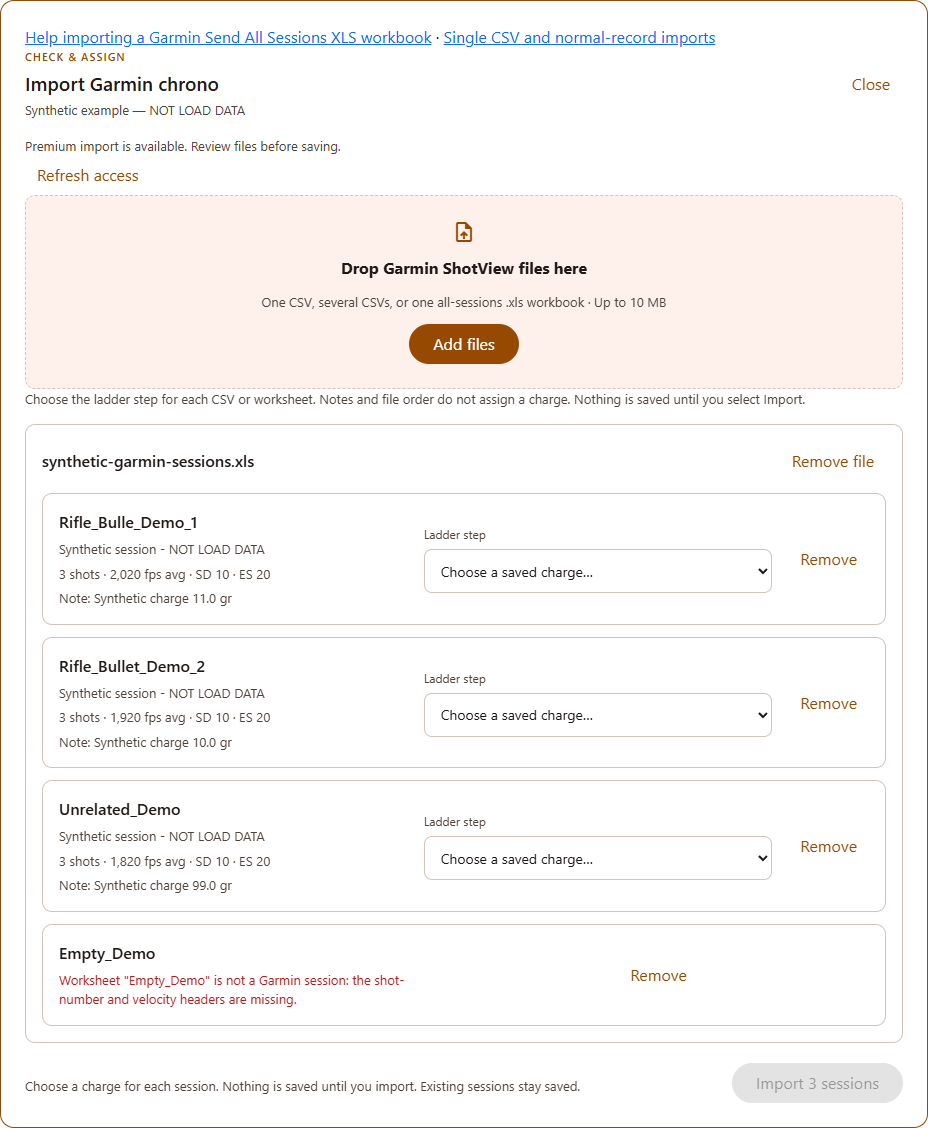
| Worksheet | Session Note | Action |
|---|---|---|
| Rifle_Bulle_Demo_1 | Synthetic charge 11.0 gr | Select step 2, not the first step |
| Rifle_Bullet_Demo_2 | Synthetic charge 10.0 gr | Select step 1 |
| Unrelated_Demo | Synthetic charge 99.0 gr | Remove; that charge is not on this ladder |
| Empty_Demo | No shots | Unreadable; remove to tidy the preview |
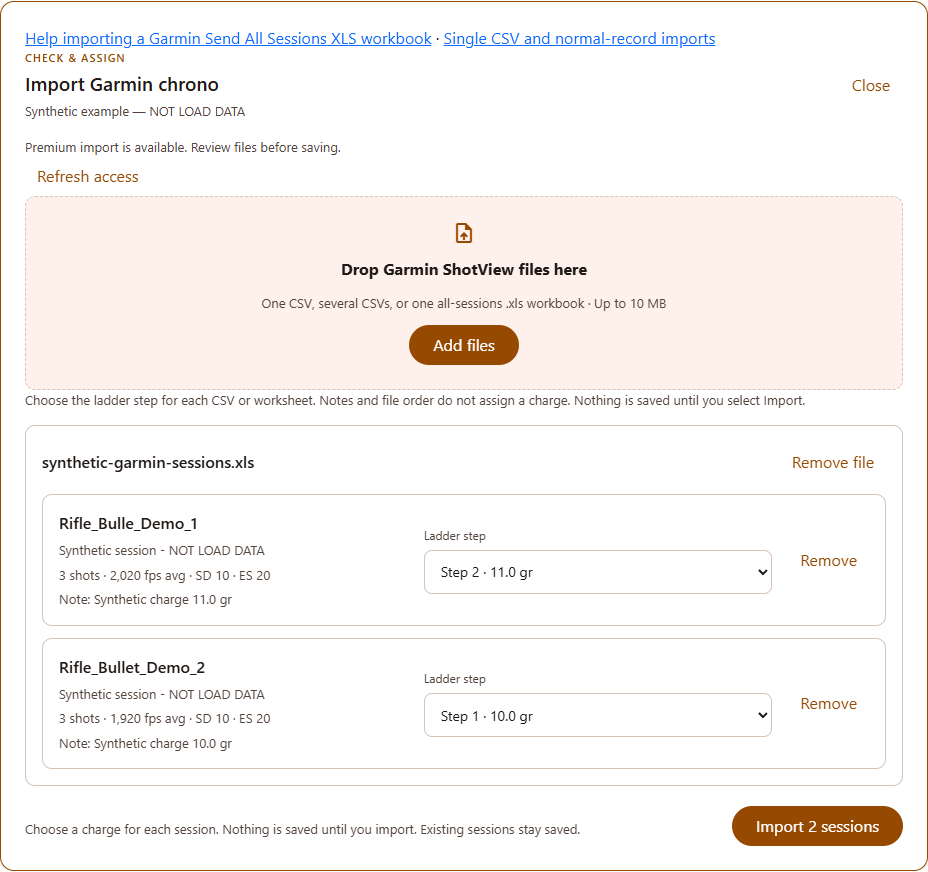
Common Garmin XLS import problems and fixes
A sheet is called “Rifle_Bulle_...” instead of “Rifle_Bullet_...”
No renaming is needed. Every worksheet is attempted; the reader checks its rows rather than requiring a correctly spelled sheet name. Missing shot-number and velocity headers, not a truncated name, make a sheet unreadable.
An empty sheet or a sheet with no valid shots appears
It shows an error in the preview and is excluded from the sessions sent to save. Remove it to make the remaining list clearer. If all sheets are unreadable, import stays unavailable: export a session with recorded shots and check the headers. Invalid shot rows can be skipped, so compare the preview count with your expected count.
The file has only some ladder steps
That is fine. Assign only the sessions present. Missing steps are not created or filled, and the app does not overwrite earlier sessions. More than one session can use a step; the preview warns when you select the same charge twice. Check whether that is intentional.
The note names a charge that is not on the ladder
The app does not validate the note against the selected charge or create a new step from it. It will let you select an existing step, so you must catch this mismatch. Remove the sheet and return to the correct record; do not substitute the nearest charge.
A session belongs to a different record
A workbook cannot identify which of your records you intended. Remove that sheet, close this import and open its correct record. The server rejects a step ID from another record and requires you to own the destination, but those checks cannot detect a session mistakenly assigned to a valid step on the wrong record.
The file is rejected or access cannot be checked
Use a genuine CSV, XLS or XLSX file, not a renamed file. Re-export a damaged workbook. For size or processing-limit errors, export fewer sessions or remove unused rows and columns from a copy. Refresh or retry the premium access check if prompted; sign in again if your session has expired.
Frequently asked questions
Why does Garmin Send All Sessions export XLS or XLSX instead of CSV?
CSV holds one session's rows; a workbook keeps multiple sessions on separate worksheets. The binary XLS export is covered here, while Garmin's current instructions describe XLSX for multiple sessions. Both workbook formats are accepted. Renaming either one .csv does not convert it.
Why are my Garmin Xero numbers stored as text in Excel?
The binary XLS all-sessions export stores its cells as text, even when they look numeric. Convert the numeric cells in a copy for spreadsheet calculations, or use the importer, which parses them with the same numeric rules as CSV. Check XLSX cell types rather than assuming all versions export text.
Does Garmin XLS import match ladder charges automatically?
No. Choose every Ladder step yourself. Read the charge in the Session Note first. Use worksheet order only if your own range notes confirm it; the app does not assign charges from notes or order.
Can I import only some steps of a ladder?
Yes. Keep the sessions you want, assign each to its saved step, and remove the others from the preview. Missing steps stay without new sessions and existing sessions are preserved.
Why is the Import button disabled?
Every valid session on a ladder needs a saved charge selected. You also need active premium access and at least one readable session. Wait for preview and access checks to finish, then check each Ladder step.
Can I import Garmin sessions into a normal ballistic record?
Yes. On a record without ladder variations, sessions attach directly to that record without a Ladder step selector. Check that all included sessions belong to that record before importing.